A Complete Step-by-Step Guide for Teachers
Create an online classroom quiz, share it with your students, conduct a live quiz, and view the results — all using the CBSEPython Live Quiz platform.
The CBSEPython Live Quiz is designed to make classroom assessments interactive and engaging. Teachers can create their own questions, generate questions using AI, share a quiz with students, and conduct a live quiz where all students participate together.
Whether you want to conduct a quick classroom revision, test students’ understanding of a chapter, or organize an interactive online assessment, this guide will help you get started.
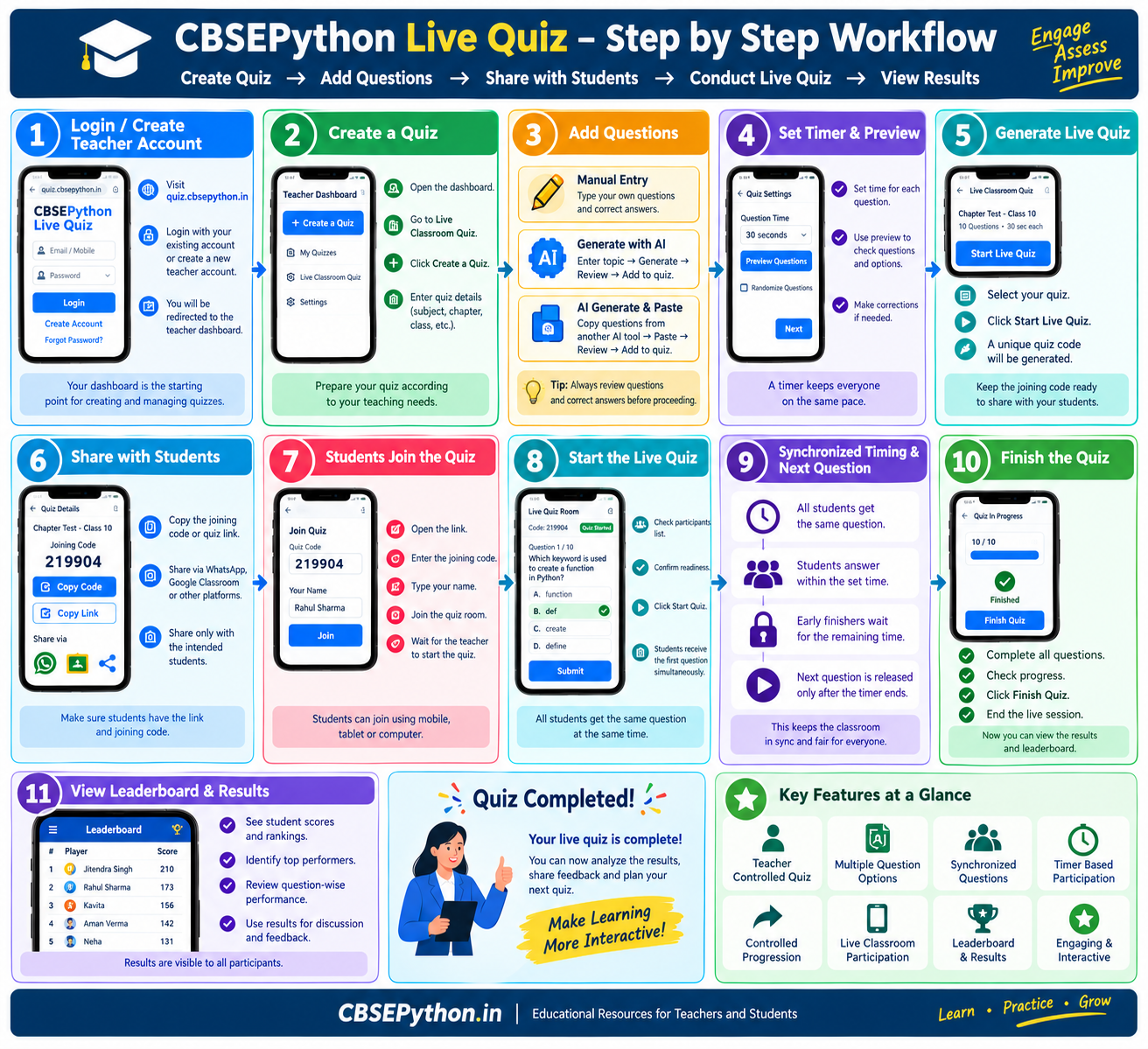
What Can Teachers Do With CBSEPython Live Quiz?
Using the Live Quiz feature, teachers can:
- Create and conduct live quizzes online.
- Enter questions manually.
- Generate questions using AI.
- Copy and paste AI-generated questions.
- Set a question timer.
- Generate a live quiz room and joining code.
- Share the quiz with students.
- Allow students to join using their names.
- Conduct a synchronized live quiz.
- Award points for correct answers and faster responses.
- View the leaderboard and quiz results.
Step 1: Login or Create a Teacher Account
Visit the CBSEPython Live Quiz website:
Website: https://quiz.cbsepython.in/
- Open the website in your browser.
- Login using your registered email address and password.
- If you are a new user, create your teacher account using the registration option.
- After successful login, you will be redirected to the teacher dashboard.
Your teacher dashboard is the starting point for creating and conducting quizzes.
Step 2: Open the Dashboard and Create a Quiz
After logging in:
- Open the teacher dashboard.
- Locate the Live Classroom Quiz section.
- Click Create a Quiz.
- Enter the required quiz details.
- Prepare the questions for your quiz.
You can create a quiz according to your subject, chapter, classroom activity, or revision requirements.
Step 3: Add Questions to Your Quiz
CBSEPython provides different ways to prepare quiz questions.
Method A: Manual Question Entry
If you already have your questions prepared:
- Select the manual question entry option.
- Enter Question 1.
- Add its answer options.
- Select the correct answer.
- Continue adding the remaining questions.
- Review your questions before proceeding.
This method is useful when you want complete control over the questions and answers.
Method B: Generate Questions Using AI
If you want to prepare questions quickly:
- Open the AI question generation option.
- Enter your topic, chapter, or required instructions.
- Generate questions using AI.
- Review the generated questions.
- Check the answers and make corrections wherever necessary.
- Add the questions to your quiz.
AI-generated questions should always be reviewed by the teacher before conducting the quiz.
Method C: Copy and Paste AI-Generated Questions
You can also prepare questions using an AI tool and paste them into the quiz.
- Prepare your questions using an AI tool.
- Copy the generated questions.
- Open the AI Generate & Paste section.
- Paste the questions into the provided box.
- Review the questions and answers.
- Make any required corrections.
This option is useful when teachers have already prepared questions using another AI tool.
Teacher’s Tip: Always check the correct answers, question wording, and answer options before starting the live quiz.
Step 4: Set the Question Timer and Preview
After adding questions:
- Set the required time for each question.
- Check the question timer.
- Click the Preview Questions option.
- Review the questions and answer options.
- Make corrections if required.
The timer helps maintain a common pace for the entire classroom.
For example, you can set a 30-second timer for each question.
Once the quiz is ready, proceed to generate the live quiz.
Step 5: Generate the Live Quiz
After completing your quiz preparation:
- Open the live quiz section.
- Select the quiz you want to conduct.
- Click Start Live Quiz.
- The system will generate a live quiz room.
- A unique quiz joining code will be displayed.
This code allows students to enter the quiz room and participate in the live classroom activity.
Keep the joining code available so you can share it with your students.
Step 6: Share the Quiz With Students
Once the live quiz room is generated, you can share it with your students.
The teacher dashboard provides options to:
- Copy the quiz joining code.
- Copy the quiz link.
- Share the quiz with students.
You can share the quiz through:
- WhatsApp classroom groups
- Google Classroom
- School communication groups
- Other online classroom platforms
Students can open the shared quiz link and enter the joining code to participate.
Important: Share the joining information only with the students who are supposed to participate in your quiz.
Step 7: Students Join the Live Quiz
Students can join the quiz using their mobile phones, tablets, or computers.
Student Instructions
- Open the quiz link shared by the teacher.
- Enter the quiz joining code if required.
- Enter your name.
- Join the live quiz room.
- Wait for the teacher to start the quiz.
Once students join, the teacher can see the participants in the live quiz dashboard.
Students should enter their names correctly so that their scores can be identified on the leaderboard.
Step 8: Start the Live Quiz
When the students have joined:
- Check the participant list.
- Confirm that the students are ready.
- Start the live quiz.
- The first question will appear for the participating students.
- Students can read the question and submit their answers.
The teacher controls the live quiz from the teacher dashboard.
How the Live Quiz Timing Works
CBSEPython Live Quiz follows a synchronized question system.
- All participating students receive the same question at the same time.
- Every question has a timer.
- Students can submit their answers during the available time.
- Students who answer early must wait for the next question.
- The next question is released only after the current question’s timer finishes.
For example:
If the teacher sets a 30-second timer:
A student who answers in 10 seconds will wait for the remaining time.
A student who answers in 25 seconds will also wait until the timer finishes.
The next question will become available after the full question time ends.
This keeps the classroom synchronized and prevents early finishers from moving ahead to later questions.
Step 9: Move to the Next Question
After the current question’s timer finishes:
- The teacher can proceed to the next question using the Next Question control.
- The next question becomes available to the participating students.
- Students answer the new question.
- The same synchronized timing process continues.
The teacher can continue moving through the questions until the quiz is completed.
Students cannot independently move ahead to the next question before the teacher releases it.
This makes the Live Quiz suitable for conducting a common classroom assessment where everyone participates together.
Step 10: Finish the Quiz
After completing all the questions:
- Check the quiz progress.
- Confirm that the quiz is ready to be completed.
- Click Finish Quiz.
- Complete the live quiz session.
The teacher can then proceed to view the quiz results.
Step 11: View the Leaderboard and Results
After the quiz is completed, teachers can view the results and leaderboard.
The results display the performance of participating students.
Teachers can use the leaderboard to:
- Identify students who answered correctly.
- Compare student scores.
- View the ranking of participants.
- Recognize students who performed well.
- Discuss questions that students found difficult.
The leaderboard makes the activity more engaging by allowing students to see their performance in the live classroom quiz.
Results are displayed to all participants, allowing students to review their performance and see the final ranking.
How Does the Scoring Work?
The Live Quiz uses answer correctness and response speed to award points.
Students can earn points for answering questions correctly, with additional points available for faster correct responses.
This encourages students to:
- Read questions carefully.
- Think quickly.
- Participate actively.
- Improve their accuracy and speed.
The final leaderboard helps teachers compare the performance of participating students.
Important Features of CBSEPython Live Quiz
1. Teacher-Controlled Quiz
Teachers manage the live quiz from their dashboard, including starting the quiz and moving through the questions.
2. Multiple Question Preparation Options
Teachers can prepare questions manually, generate them using AI, or paste questions prepared using an AI tool.
3. Synchronized Questions
All participating students follow the same question sequence.
4. Timer-Based Participation
Students answer within the available time for each question.
5. Controlled Question Progression
Students wait until the current question’s timer finishes before the next question becomes available.
6. Live Classroom Participation
Students join using the quiz joining information and participate together.
7. Leaderboard and Results
Teachers and participants can view the final performance and ranking.
Frequently Asked Questions
Can I create my own questions?
Yes. Teachers can enter their own questions manually and prepare a quiz according to their classroom requirements.
Can I generate questions using AI?
Yes. Teachers can use the AI question generation feature to prepare questions. Generated questions should be reviewed before conducting the quiz.
Can I paste questions prepared using another AI tool?
Yes. You can copy your prepared questions and paste them into the AI Generate & Paste section.
Can students join using mobile phones?
Yes. Students can open the shared quiz link using their mobile phones, tablets, or computers.
Can students move to the next question before the timer finishes?
No. Students follow the synchronized question sequence. The next question is released only after the current question’s timer finishes.
What happens if a student answers early?
The student waits for the remaining time. All students continue together when the next question is released.
Can I see the students’ scores?
Yes. After the quiz, the teacher can view the leaderboard and the results of participating students.
Can I use the quiz for classroom revision?
Yes. Teachers can use the Live Quiz for chapter revision, practice, classroom activities, and interactive assessments.
Start Your First Live Quiz Today!
Make classroom learning more interactive with CBSEPython Live Quiz.
Create your questions, share the quiz with your students, conduct a synchronized live quiz, and view the results.
Visit the CBSEPython Live Quiz website:
CBSEPython.in — Educational Resources for Teachers and Students